My Ultimate Fortnite Ballistic Settings Guide for Competitive Advantage in 2026
Unlock peak performance in Fortnite Ballistic with these essential graphics and audio settings, designed for competitive advantage and superior situational awareness.
As a dedicated player of Fortnite Ballistic, Epic Games' foray into the tactical shooter arena, I've spent countless hours fine-tuning my setup to gain every possible edge. In the hyper-competitive landscape of 2026, where split-second decisions define victory, having the optimal configuration isn't just a preference—it's a necessity. My journey through the menus, testing every slider and toggle, has led me to a collection of settings that deliver the perfect blend of silky-smooth performance, crystal-clear audio, and unobtrusive visual feedback. This guide is my personal blueprint for dominating the leaderboards, compiled from relentless experimentation and a deep understanding of what the game demands from a player.
Video & Graphical Configuration for Peak Performance
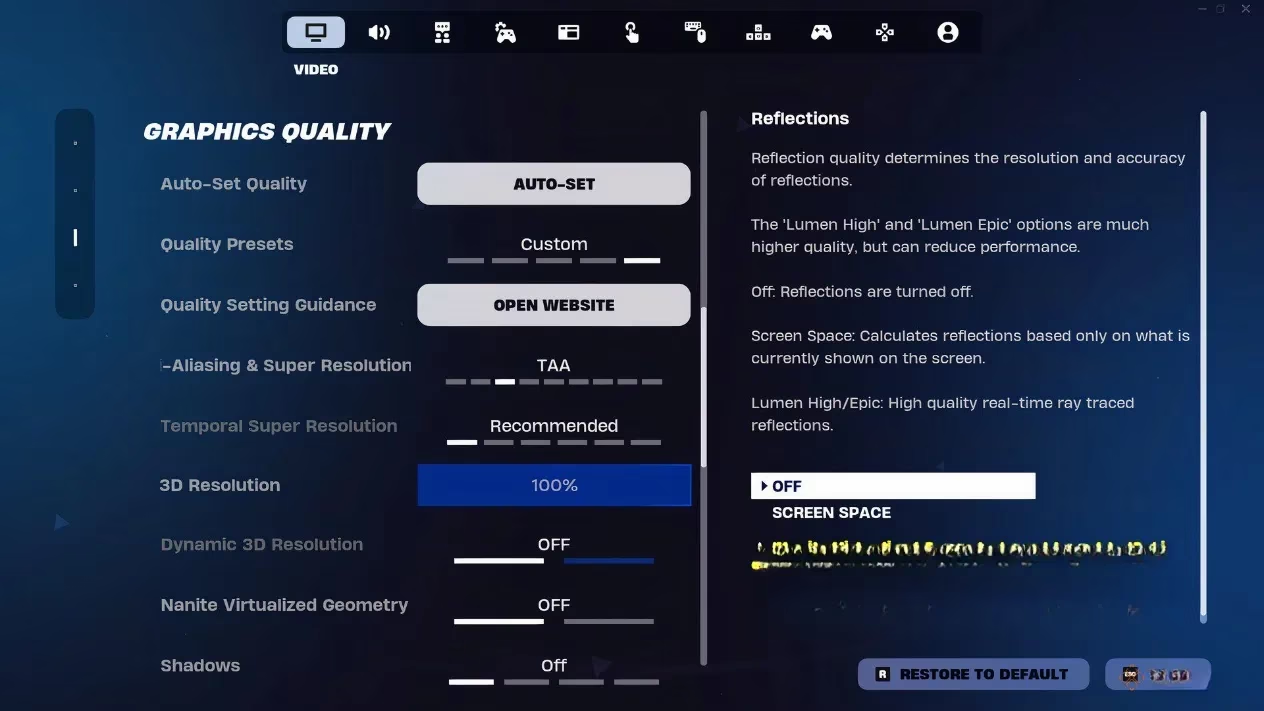
My first stop is always the video settings, the foundation of a responsive experience. I navigate there by clicking my avatar in the top-right corner and then the gear icon. Here’s my exact setup, designed to maximize frames per second while maintaining essential visual clarity:
Display Settings:
-
Window Mode: Full Screen (for exclusive GPU focus and lowest input lag).
-
Resolution: 1920 x 1080 (the sweet spot for high refresh rates).
-
V-Sync: Off (eliminates input delay, though may cause screen tearing).
-
Frame Rate Limit: Unlimited (lets my hardware push as many frames as possible).
-
Rendering Mode: DirectX 12 (offers the best modern performance and feature support).
Graphics & Quality Presets:
I prioritize raw performance over cinematic flair. My philosophy is: see the enemy first, see them clearly.
-
Brightness: 100% (for spotting enemies in dark corners).
-
Motion Blur: Off (reduces visual clutter and improves target tracking).
-
Anti-Aliasing: TAA (Temporal Anti-Aliasing provides a good balance of smooth edges without a huge performance hit).
-
Shadows, Global Illumination, Reflections: All set to Low or Off. These are the biggest performance drains and offer minimal tactical benefit.
-
View Distance: Epic (crucial for spotting distant targets and planning rotations).
-
Textures: High (maintains weapon and character detail for identification).
-
Effects & Post Processing: Low (reduces distracting particle effects and blur).
Advanced Tweaks:
-
Nvidia Reflex Low Latency: On+Boost (a non-negotiable setting for minimizing system latency, a game-changer for reactive play).
-
Show FPS: On (I keep this on to constantly monitor my performance, though the guide suggests off).
Audio Configuration for Unmatched Situational Awareness
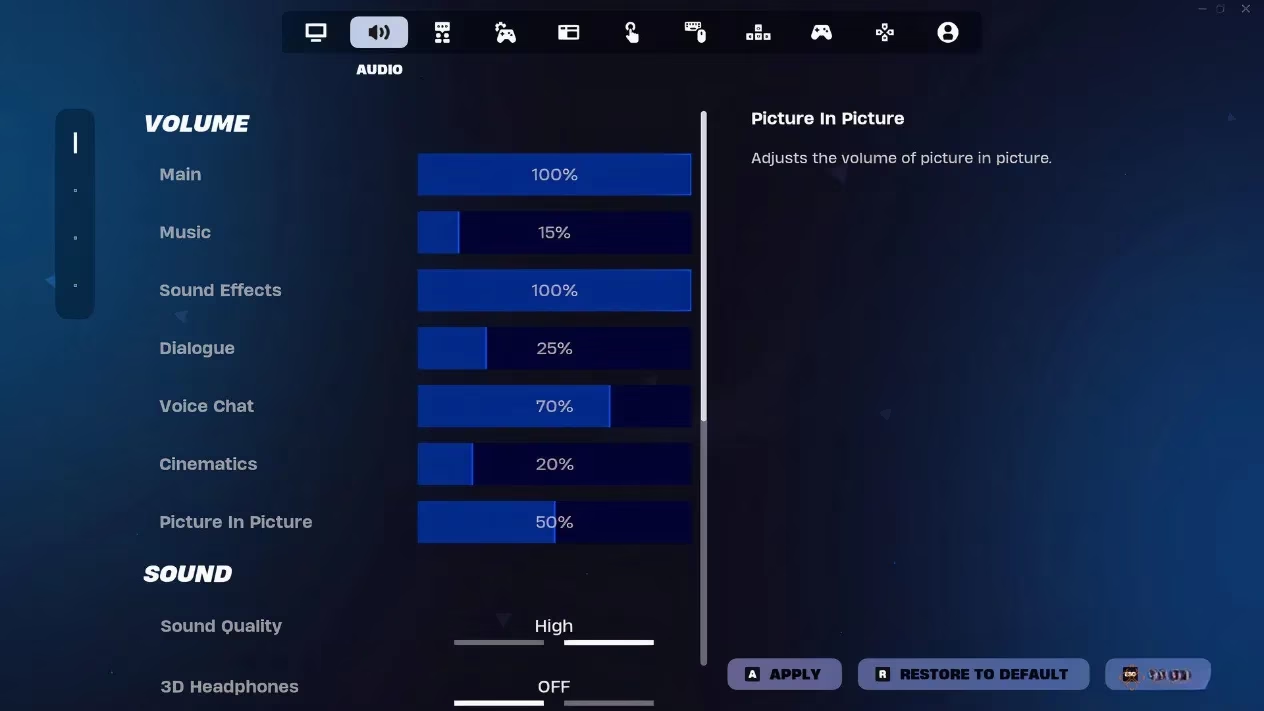
In a tactical shooter like Ballistic, hearing a footstep or a reload can mean the difference between a clutch elimination and a swift defeat. My audio setup is designed to amplify crucial game sounds while minimizing distractions.
Volume Mix:
| Setting | My Value | Reasoning |
|---|---|---|
| Main Volume | 100% | Baseline level. |
| Music | 0% | Completely disabled. It only masks important audio cues. |
| Sound Effects | 100% | Maximized for critical sounds like footsteps, gunfire, and abilities. |
| Dialogue | 30% | Kept audible for mission cues, but not overwhelming. |
| Voice Chat | 80% | Clear communication with my squad is vital. |
| Cinematics | 20% | Low, as they are not relevant during gameplay. |
Sound Quality & Features:
-
Sound Quality: High (ensures accurate spatial audio).
-
3D Headphones: Off (I find the standard stereo imaging more consistent, but this is personal preference).
-
Visualize Sound Effects: Enabled 💡. This is arguably one of the most important settings. It provides visual indicators for sounds like footsteps and gunfire, acting as a failsafe if my audio is compromised or for learning sound locations.
-
Background Audio: Off (stops other app sounds from interrupting the game).
Heads-Up Display (HUD) & Interface Customization
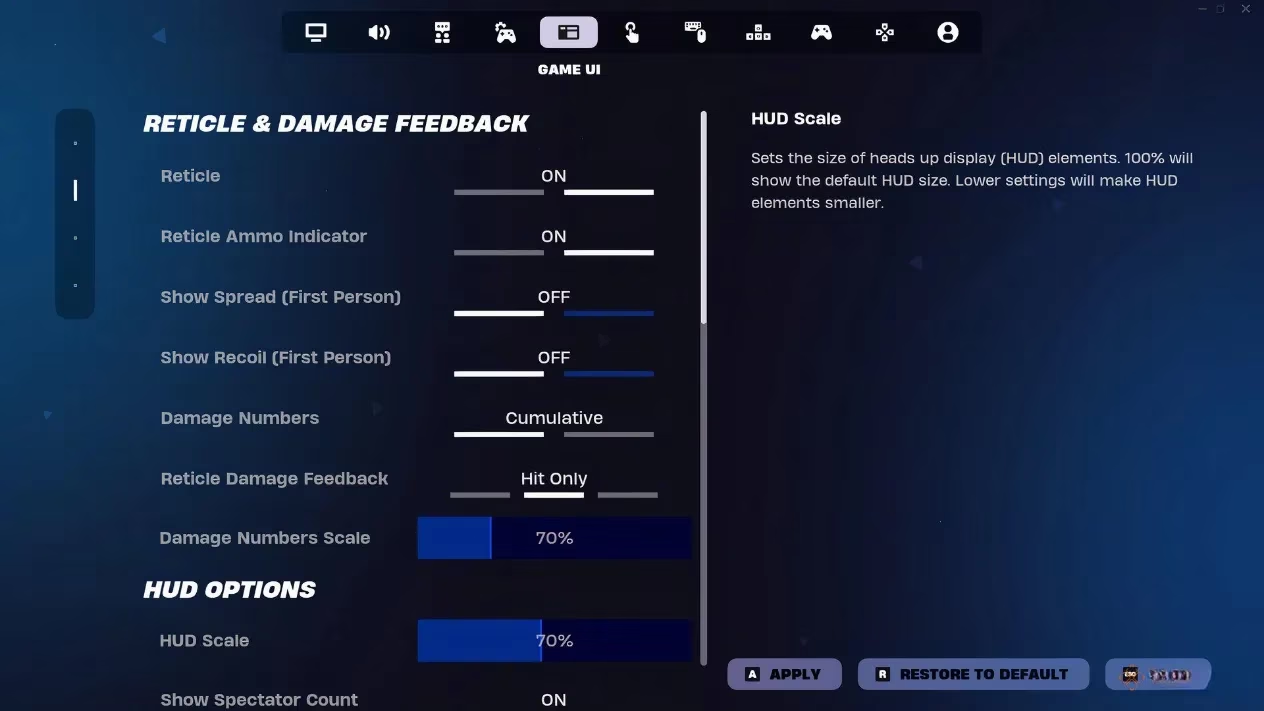
A clean, informative HUD is my command center. I need vital data at a glance without my screen feeling cluttered. Here’s how I streamline my interface:
Reticle & Combat Feedback:
-
Reticle & Ammo Indicator: On (essential for weapon state).
-
Damage Numbers: Cumulative (shows total damage dealt in a burst, which is better for assessing lethality).
-
Reticle Damage Feedback: Hit Only (my crosshair confirms hits without extra flash).
-
Damage Numbers Scale: 70% (visible but not obstructive).
HUD Elements & Visibility:
I adopt a minimalist approach. Here’s a quick list of what stays and what goes:
✅ ON (Crucial Information):
-
Player Health
-
Minimap
-
Quick Bar (inventory)
-
Target Info
-
Elimination Feed
-
Control Prompts
-
Show Spectator Count
❌ OFF (Screen Clutter):
-
Resources (I check my backpack manually)
-
Map & Backpack Keys (already on the minimap/bar)
-
Net Debug Status
-
Quest Progress (for non-mission modes)
-
Runtime Performance Stats
-
HUD Scale: 70%. This shrinks all UI elements just enough to maximize my field of view while keeping everything perfectly readable.
Perfecting the Crosshair for Precise Aim
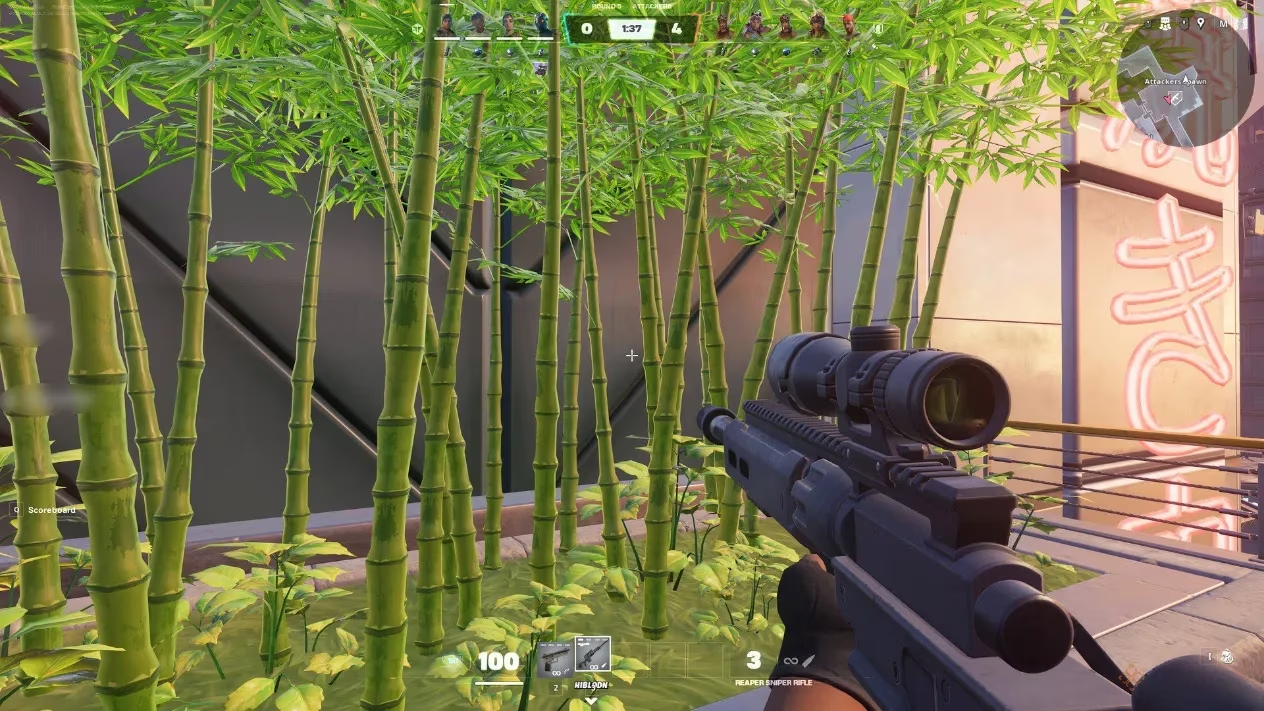
While Fortnite Ballistic doesn't have the deep customization of some shooters, the default crosshair can be optimized. A static, predictable point of aim is key for building muscle memory. My process is simple:
-
Go to Settings > Game UI.
-
Find the Reticle & Damage Feedback section.
-
Locate the two critical toggles: 'Show Spread (First Person)' and 'Show Recoil (First Person)'.
-
I turn both of these OFF immediately.
This action is transformative. It stops the crosshair from blooming with weapon fire or jumping with recoil, giving me a consistent, concise dot or chevron to place on my target's head. No more guessing where the true center of your screen is during a frantic firefight. This single change has improved my tracking and flick-shot accuracy more than any other setting adjustment.
Final Thoughts and Personal Philosophy
Implementing these settings in 2026 feels like tuning a high-performance vehicle. Every option has a purpose, and the collective result is a game that feels incredibly responsive and transparent. The high frame rate and low latency settings make my inputs feel instantaneous. The audio configuration turns my headset into a sonar system, pinpointing enemy movements. The clean HUD and static crosshair remove all doubt and distraction, allowing pure focus on strategy and aim.
Remember, these are my optimal settings, forged in the heat of countless matches. I strongly recommend using them as a foundation. Start here, play several games, and then adjust one or two things at a time based on your personal comfort, hardware, and playstyle. The goal is to create an environment where the game itself disappears, and only the tactical duel remains. Now, with your game finely tuned, it's time to drop in and climb those ranks. See you on the battlefield 🎯.